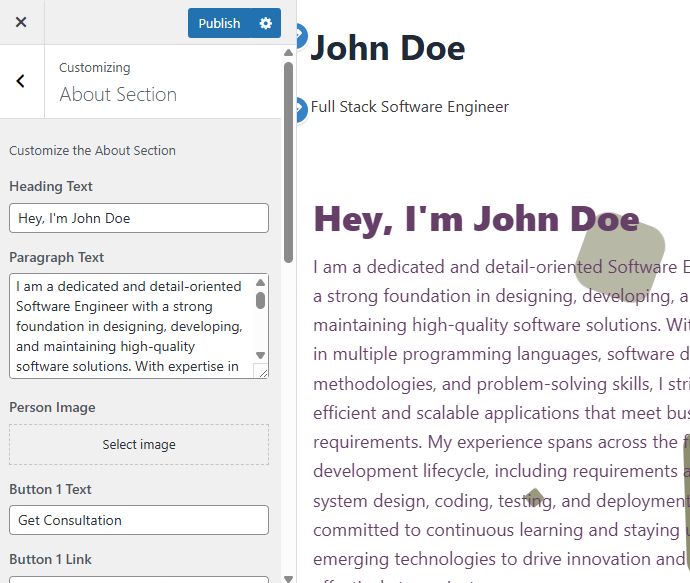
Use this section to introduce yourself professionally with a personalized heading, description, photo, and call-to-action buttons. You can also customize the background and text colors or add background images.
1. Heading Text
Write a catchy title or greeting that represents you.
Example:
Hey, I’m John Doe
2. Paragraph Text
Describe your profession, skills, goals, and experience in a concise and engaging way.
Example:
I am a dedicated and detail-oriented Software Engineer with a strong foundation in designing, developing, and maintaining high-quality software solutions. With expertise in multiple programming languages, software development methodologies, and problem-solving skills, I strive to deliver efficient and scalable applications that meet business requirements. My experience spans the full software development lifecycle, including requirements analysis, system design, coding, testing, and deployment. I am committed to continuous learning and staying updated with emerging technologies to drive innovation and contribute effectively to project success.
3. Person Image
Upload your photo to add a personal touch to the About section.
- Use a PNG format image for better visibility and transparency support.
- Recommended size: square or portrait with good resolution.
4. Button 1 Text & Link
Create a primary call-to-action button.
- Text Example: Get Consultation
- Link Example:
/contact/(link to your contact page or relevant section)
5. Button 2 Text & Link (Optional)
Add a secondary button, usually for downloading your CV or portfolio.
- Text Example: Download CV
- Upload your CV in PDF format and link it here.
- Link Example:
John_Doe_Resume.pdf - You can remove or change this file anytime via the settings.
6. Background Settings
Background Color
- Choose a background color for the About section that complements your photo and text.
Text Color
- Select colors for the heading and paragraph text to ensure readability and style consistency.
Background Image (Optional)
- Instead of a solid color, upload a background image to add visual interest.
- You can also apply an overlay color on top of the background image for better text contrast.
Tips for Best Results
- Use a clear, professional photo to create trust and recognition.
- Keep your paragraph concise but informative to engage visitors quickly.
- Choose colors that align with your personal branding and ensure text stands out.
- Test buttons to ensure links work correctly.